

Sonos controls
This page covers what you can do with a Sonos player from the 1Home dashboard: playback controls, volume, grouping, favorites, playlists, and audio clips.
Table of contents
Playback controls
Every Sonos player exposes the standard playback controls:
Play— resume playback of whatever is queued on the player.Pause— pause the current track.Toggle Play/Pause— flip between play and pause without needing to know the current state (useful for a single pushbutton).Next— skip to the next track in the queue.Previous— return to the previous track.Seek— jump to an absolute position in the current track.Seek Relative— jump forward or backward by a number of seconds.
Playback controls apply to the group the player belongs to. If two players are grouped, pausing one pauses the group as a whole.
Volume and mute
Set Volume— set the volume to an absolute value (0–100%).Set Relative Volume— adjust the volume by a delta (for example, +10 or −5).Mute/Unmute— silence or un-silence the player.Duck— drop the volume for a chosen duration in milliseconds, then return to the previous level automatically.Unduck— restore the previous volume immediately, without waiting for the duck duration to expire.
By default, volume applies to the whole group. To control an individual speaker inside a group (for example, to lower just the kitchen Sonos while leaving the rest of the household untouched), ungroup it first.
Play modes
The four play-mode toggles apply to the current queue:
Repeat— repeat all tracks in the queue.Repeat One— repeat the current track.Shuffle— play queue in random order.Crossfade— blend between tracks instead of cutting.
Favorites and playlists
Sonos favorites and playlists that you have saved in the Sonos app appear automatically in 1Home. You do not configure them separately — 1Home reads the list from your Sonos account.
Load Favorite— pick a favorite from a dropdown and queue it on the player. Playback starts immediately.Load Playlist— same, for Sonos playlists.
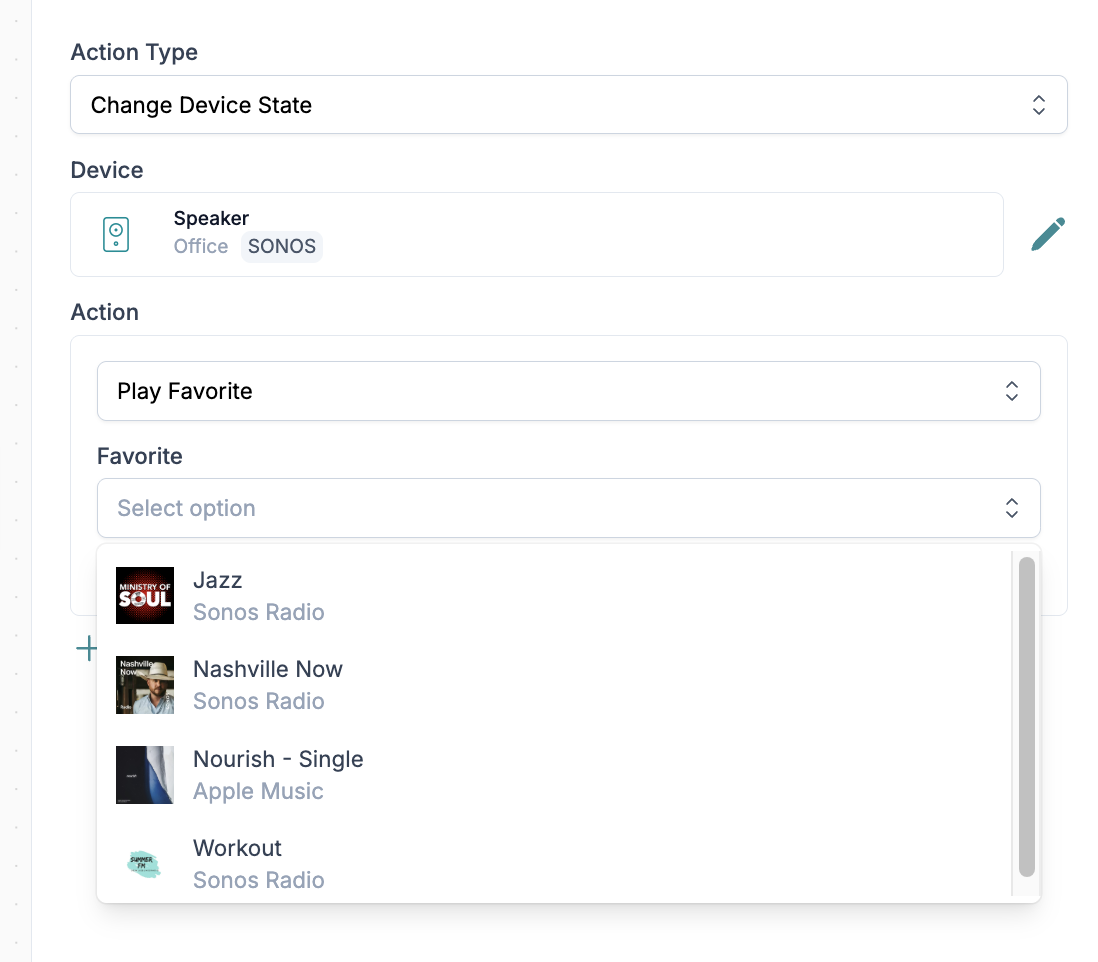
The dropdown is populated on the fly from the Sonos cloud, so any favorite you add in the Sonos app shows up in 1Home once the speaker syncs.
Grouping speakers
Sonos grouping mirrors what you see in the Sonos app. You can:
- See which players are currently in a group on the 1Home device page.
- Use
Modify Group Membersto add or remove players from the current group. - Group and ungroup from either 1Home or the Sonos app — both stay in sync.
Grouping is especially useful when paired with automations or KNX pushbuttons — you can, for example, bind a pushbutton to "group all upstairs speakers" as a morning routine.
Audio clips
Audio clips let you play a short sound on a Sonos speaker without interrupting the underlying music in a disruptive way. They are the mechanism for doorbells, notifications, and spoken announcements.
Play Audio Clip— play a built-in Sonos chime or a short clip from our libraryPlay Custom Audio Clip— same, but pointing at a URL ofmp3file you host (for example, you could uploadmp3files to a public server or public github repository GitHub and paste the URL into 1Home).
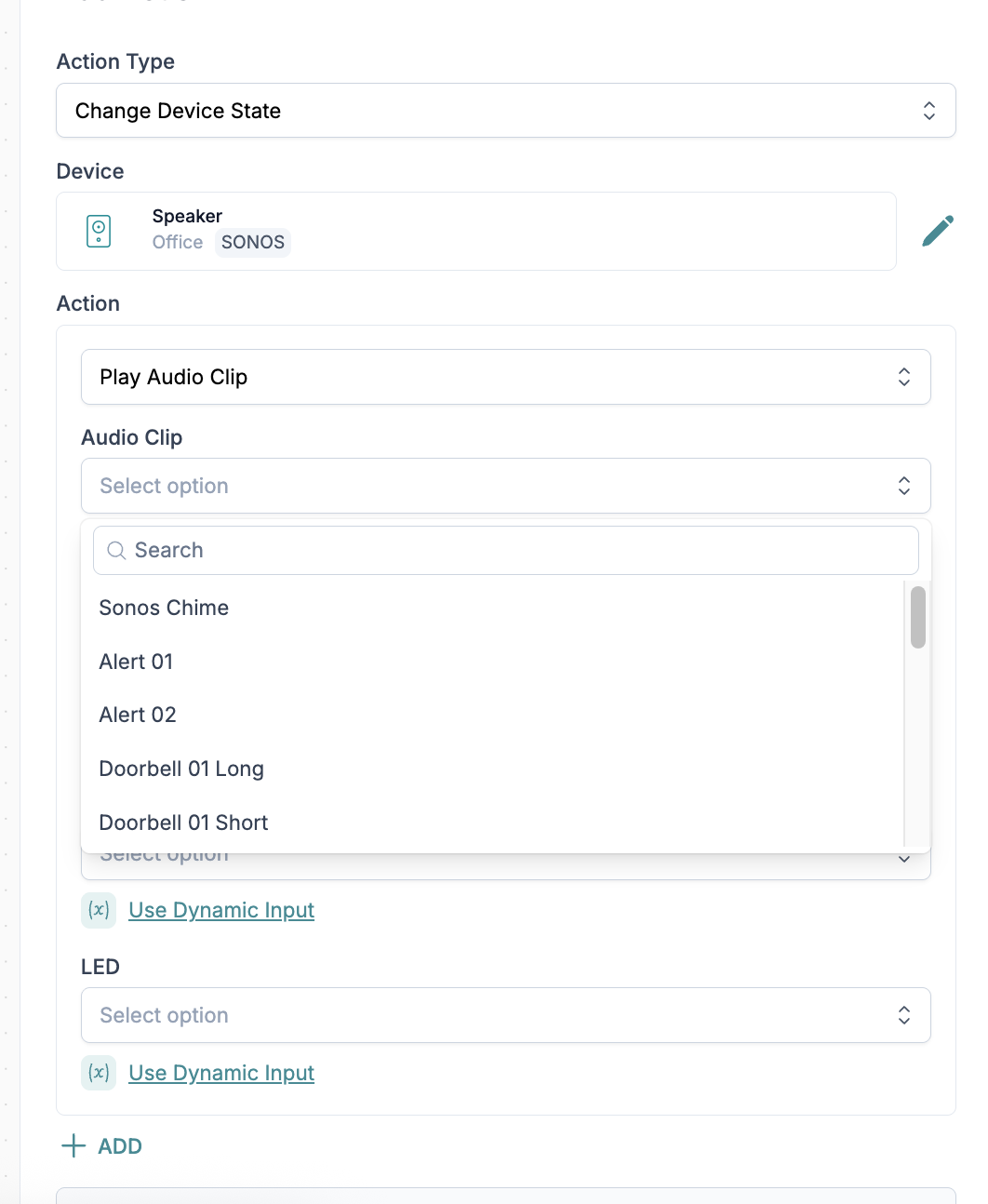
Audio clips are well-suited to events like a doorbell press, a washing-machine finish, or a "dinner is ready" announcement. For longer content, queue a favorite or a playlist instead.